Recon UI — Containers Page
1. Page Overview
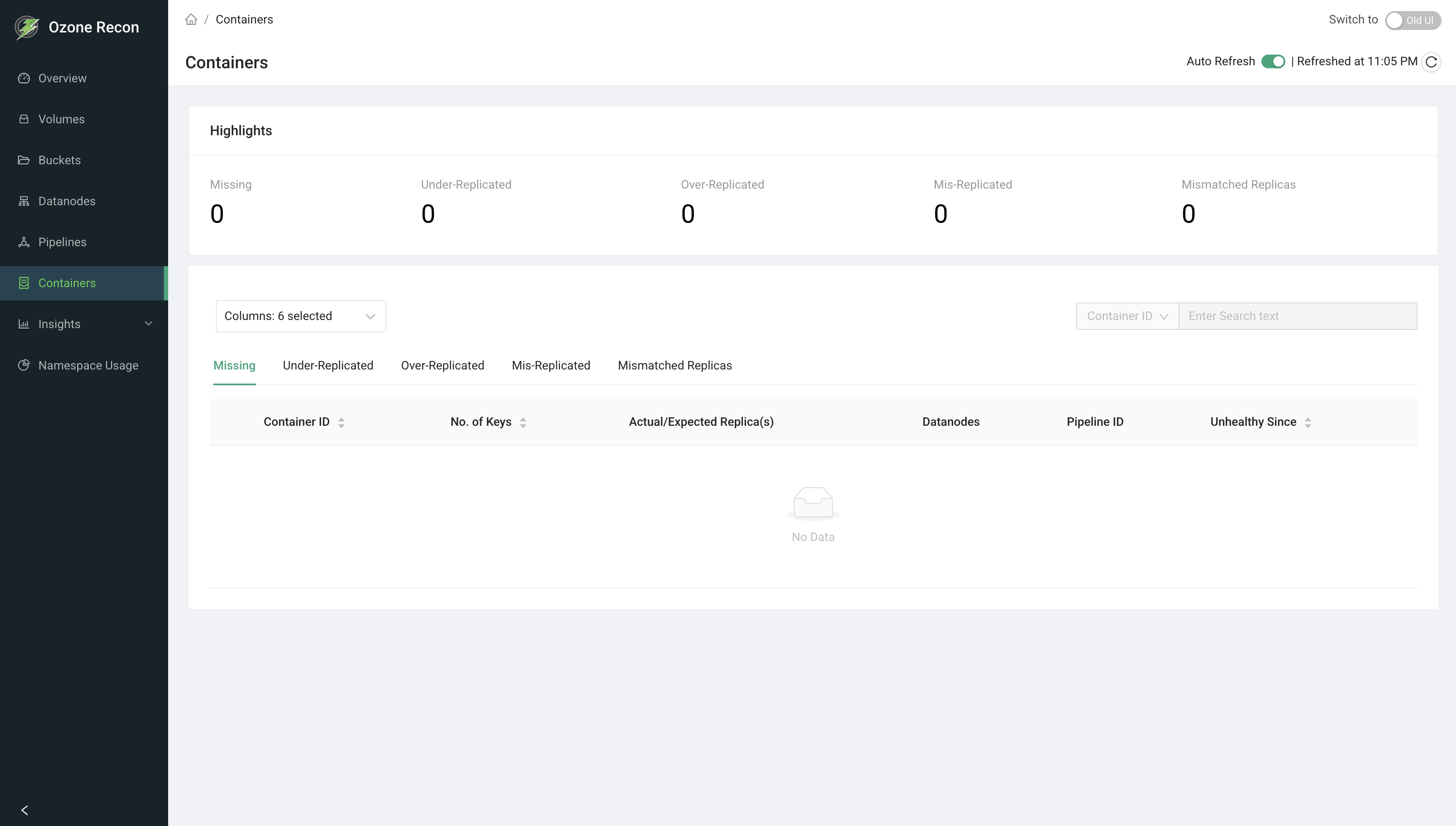
The Containers page focuses on unhealthy containers — containers whose replicas are missing, under- or over-replicated, mis-replicated, mismatched, or quasi-closed. A highlights bar summarizes the counts, tabs break the containers down by problem type, and each container can be expanded to see the keys it holds. An Export tab lets you download the full list of a given unhealthy state as a CSV.
It is the main page for diagnosing container-level replication and data- availability problems.
2. When to Use This Page
- To check whether any containers are missing (a data-availability risk).
- To find under-replicated or over-replicated containers and track recovery.
- To identify mis-replicated or replica-mismatched containers.
- To see which keys are affected by an unhealthy container.
- To export a full list of containers in a given state for offline analysis or ticketing.
3. How to Access the Page
Open the Containers entry in the left navigation menu, or go to the
/Containers route directly. You can also arrive here from the Containers
health card on the Overview page.
4. Information Displayed
The page header shows the title and an Auto Reload panel (see Available Actions).
Highlights card
A summary bar of cluster-wide container counts:
- Total Containers — all containers in the cluster.
- Missing — containers with no available replicas.
- Under-Replicated — fewer replicas than expected.
- Over-Replicated — more replicas than expected.
- Mis-Replicated — replicas placed in a way that violates placement rules.
- Mismatched Replicas — replicas that disagree (for example, differing data checksums).
- Quasi-Closed — containers stuck in the quasi-closed state.
Tabs
Each of the first six tabs shows a table of containers in that state: Missing, Under-Replicated, Over-Replicated, Mis-Replicated, Mismatched Replicas, and Quasi-Closed. The seventh tab is Export.
Container table columns
- Container ID — the container identifier. Sortable.
- No. of Blocks — number of blocks/keys in the container. Sortable.
- Actual/Expected Replica(s) — the count of replicas present versus expected
(for example
2 / 3). - Datanodes — the number of datanodes holding replicas; hover to list the hosts (and data checksums when available).
- Pipeline ID — the pipeline the container belongs to.
- Unhealthy Since — when the container entered this unhealthy state. On the Quasi-Closed tab this column is labeled State Enter Time.
Expanded row — keys in a container
Clicking a container row expands it and loads the keys stored in that container, in a table with Volume, Bucket, Key, Size, Date Created, Date Modified, and Path.
Export tab
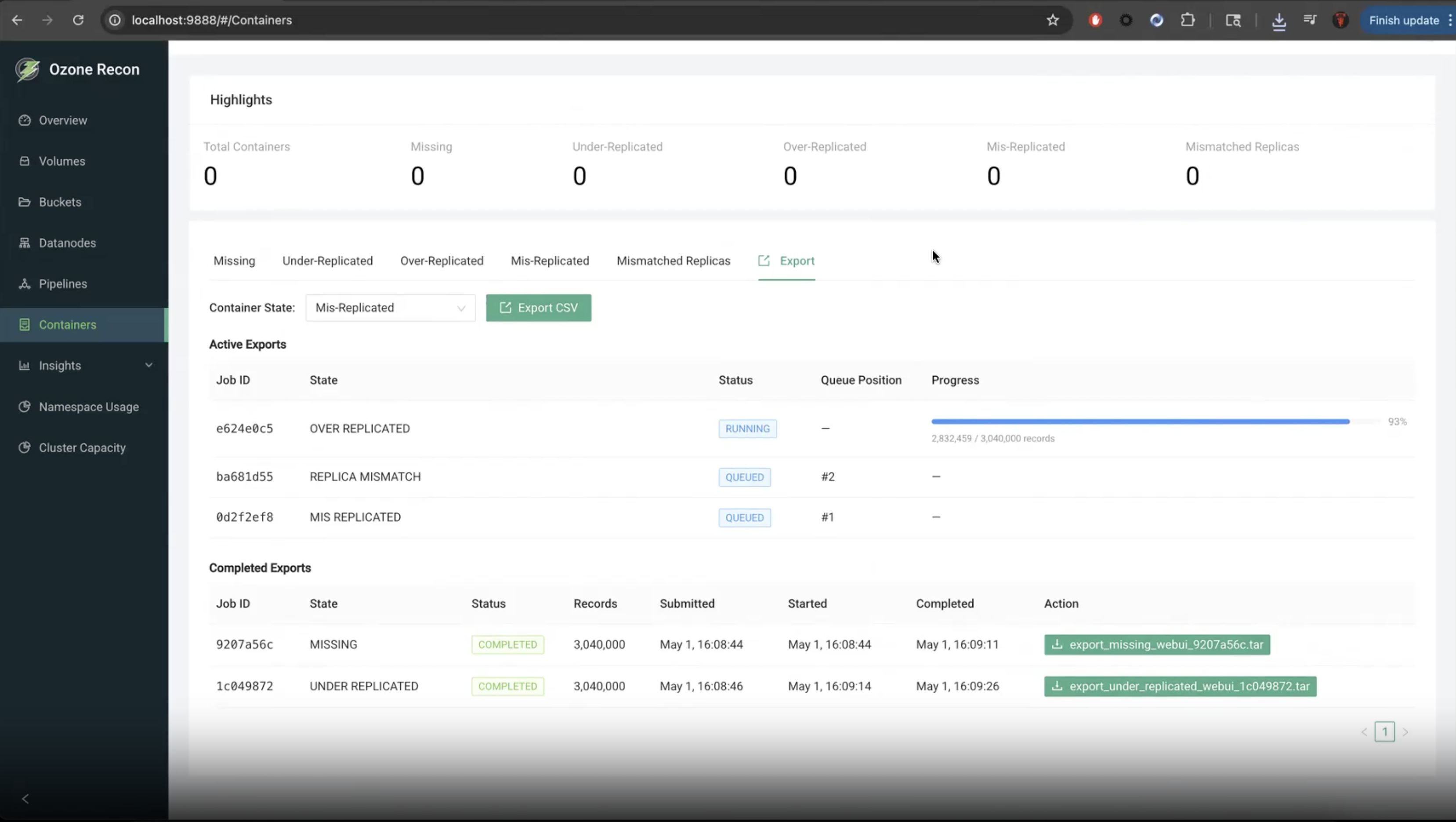
- A Container State selector and an Export CSV button to start an export job for one state.
- Active Exports table (shown when jobs are running/queued): Job ID, State, Status, Queue Position, Submitted, Started, and a live Progress bar with a processed/total record count.
- Completed Exports table: Job ID, State, Status, Records, Submitted, Started, Completed, and an Action column with Download (showing the number of downloads remaining) and Delete. Failed jobs show the error message instead of a download button.
5. Available Actions
- Tabs — switch between unhealthy states; each tab loads its own data on first open.
- Columns selector — choose visible columns. Container ID is always shown.
- Search — filter loaded rows by Container ID or Pipeline ID (contains match). Disabled when the table is empty.
- Sort — click a sortable column header.
- Row expand — click a row to load and view the keys in that container.
- Pagination — Previous / Next buttons with a Rows per page selector (10, 25, 50, 100). Paging uses container IDs, so it steps forward and backward through the list rather than jumping to arbitrary pages.
- Auto Reload panel — an Auto Refresh toggle (refreshes the active tab and highlights every 60 seconds) and a manual reload button.
- Export actions — start an export for a chosen state, watch progress, download the resulting archive (limited number of downloads), and delete finished jobs. Only one active/completed export per state is allowed at a time; the button is disabled and explains why if one already exists.
Exporting a list of containers
To export every container in a given unhealthy state:
- Open the Export tab.
- Pick the state to export from the Container State selector (for example Missing or Under-Replicated).
- Click Export CSV. The job appears under Active Exports as QUEUED (with its queue position), then RUNNING with a live progress bar showing processed / total records.
- When it finishes, the job moves to Completed Exports as COMPLETED.
Use Download in the Action column to save the archive (for example
export_missing_webui_<jobid>.tar); the button shows how many downloads remain. - Use Delete to remove a finished job. A FAILED job shows its error message instead of a download button.
Only one active or completed export per state is allowed at a time, and each completed export allows a limited number of downloads. The following video shows the full flow:
6. How to Interpret the Information
- Missing > 0: the most serious state — those containers have no reachable replicas, so their data is currently unavailable. Investigate immediately.
- Under-Replicated: fewer copies than required; the system normally re-replicates automatically, but persistent entries may indicate datanode or capacity problems.
- Over-Replicated: more copies than required; usually self-corrects, wasting some space until it does.
- Mis-Replicated: replica placement violates the configured placement policy (for example rack rules), even if the count is correct.
- Mismatched Replicas: replicas exist but disagree — check the per-datanode checksums in the Datanodes popover.
- Quasi-Closed: containers that could not be cleanly closed; the State Enter Time shows how long they have been stuck.
- Actual/Expected
2 / 3: actual is less than expected → under-replicated; greater → over-replicated. - Export status: QUEUED (waiting), RUNNING (in progress, with a progress bar), COMPLETED (downloadable), FAILED (hover for the error).
7. Common Use Cases
- Data-availability check. Open the page, read the Missing highlight, and if non-zero open the Missing tab and expand rows to see exactly which keys are affected.
- Track replication recovery. Watch the Under-Replicated count and tab over time (with Auto Refresh on) to confirm the cluster is healing after a datanode outage.
- Hand off to another team. Use the Export tab to generate a CSV of all containers in a given state and attach it to a ticket for follow-up.
8. Important Notes and Limitations
- Data source and freshness. Unhealthy-container information comes from Recon's own database, populated by Recon's periodic container-health checks; the keys shown when expanding a container come from Recon's copy of the OM database. Figures are only as current as those background tasks, and Auto Refresh only re-queries Recon.
- The tables list unhealthy containers, not all containers. Total container count appears only in the Highlights bar.
- Missing count on the Overview page is capped at 1001; this page shows the detailed per-state lists.
- Search applies to the loaded page only (contains match on Container ID or Pipeline ID).
- Exports are limited: one active/completed job per state at a time, a bounded number of downloads per completed job, and a bounded queue (starting an export may be rejected if the queue is full).
- On an error, the page shows a data-fetch error; export polling errors are silent by design.
9. Related Pages
- Overview — the Containers health card and total container count.
- Datanodes — health of the datanodes that hold container replicas.
- Pipelines — the pipelines containers belong to.