Recon UI — OM DB Insights Page
1. Page Overview
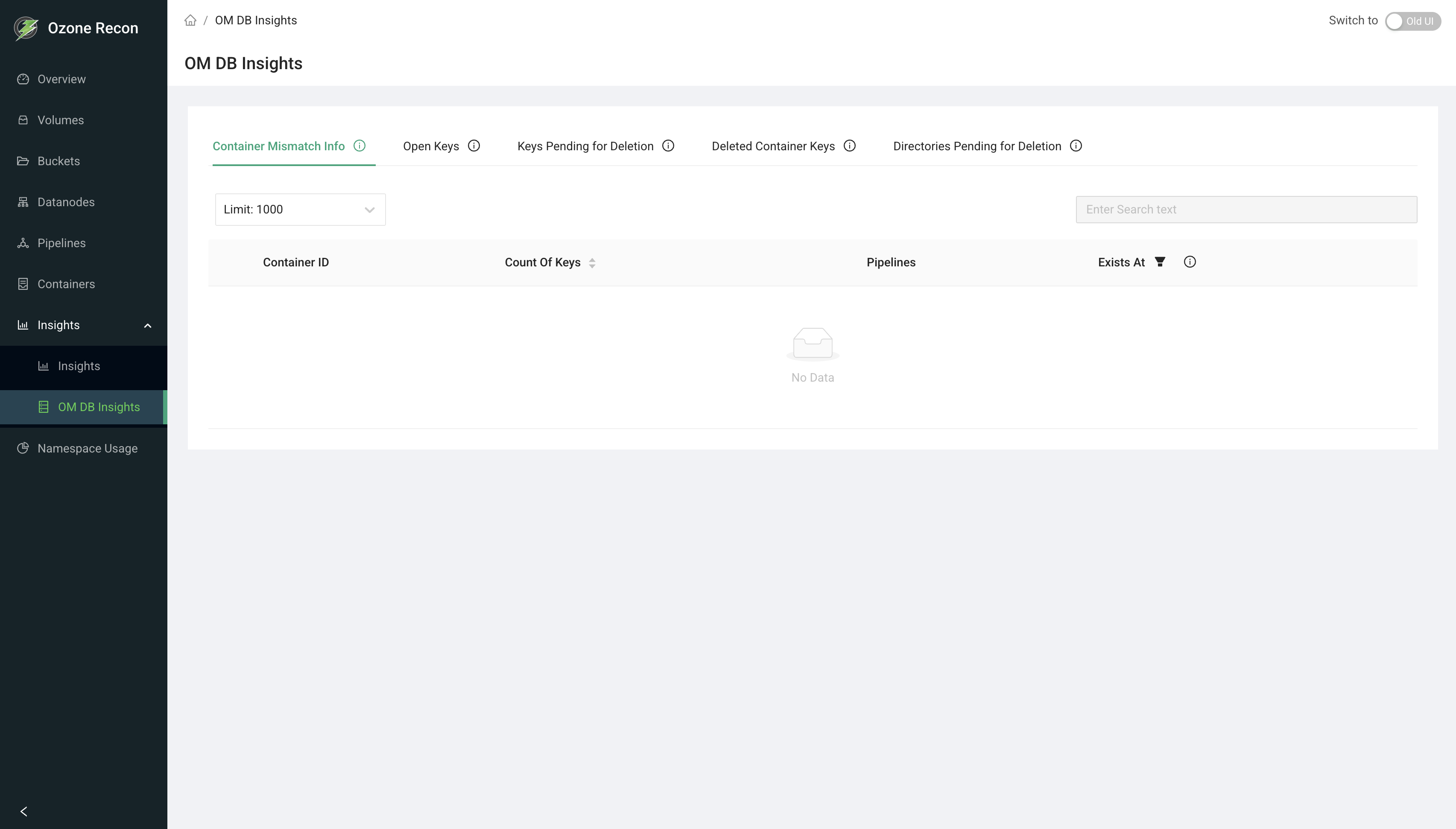
The OM DB Insights page exposes detail from the Ozone Manager (OM) database and how it lines up with SCM's container view. It is organized into five tabs: container mismatches between OM and SCM, open (uncommitted) keys, keys pending deletion, keys mapped to deleted containers, and directories pending deletion.
It is the drill-down destination for the Open Keys and Delete Pending Keys summaries on the Overview page, and the main place to investigate deletion backlogs and OM/SCM inconsistencies.
Note: this is the OM DB Insights page. The separately named Insights page covers file-size and container-size charts.
2. When to Use This Page
- To investigate a growing backlog of keys or directories pending deletion.
- To find open keys that were never committed (possible leaked/abandoned writes).
- To find containers that exist in OM but not SCM (or vice versa).
- To see which keys map to containers SCM has marked deleted.
- To list the keys inside a specific container.
3. How to Access the Page
Open the OM DB Insights entry in the left navigation menu, or go to the
/Om route directly. From the Overview page, the Open Keys Summary card
opens this page on the Open Keys tab, and the Delete Pending Keys Summary
card opens it on the Keys Pending for Deletion tab.
4. Information Displayed
The page header shows the title. Below it are five tabs. Each tab has a Limit selector and a table; some tables allow row expansion to list the affected keys.
Tab 1 — Container Mismatch Info
Containers present in OM but missing in SCM, or the reverse. Columns:
- Container ID
- Count Of Keys — number of keys in the container.
- Pipelines — the pipelines involved.
- Exists at — where the container exists (OM or SCM).
A toggle switches between containers missing in OM and missing in SCM. Rows expand to show the keys in the container.
Tab 2 — Open Keys
Keys that are being written but not yet committed. Columns:
- Key Name
- Size
- Path
- In state since — how long the key has been open.
- Replication Type and Replication Factor
- Type — FSO or Non-FSO.
A toggle switches between FSO and Non-FSO keys.
Tab 3 — Keys Pending for Deletion
Keys awaiting deletion. Columns:
- Key Name
- Path
- Total Data Size
- Total Key Count
Rows expand to show the individual pending-delete key entries.
Tab 4 — Deleted Container Keys
Keys mapped to containers that SCM has marked as DELETED. Columns:
- Container ID
- Count Of Keys
- Pipelines
Rows expand to show the keys in the container.
Tab 5 — Directories Pending for Deletion
Directories awaiting deletion. Columns:
- Directory Name
- In state since
- Path
- Size
Expanded key table (shared)
When a container row is expanded, the keys are listed with Volume, Bucket, Key, Size, Date Created, and Date Modified.
5. Available Actions
- Tabs — switch between the five views.
- Limit selector — how many rows to fetch (1000, 5000, 10000, 20000; default 1000). The selection is shared across tabs.
- Toggles:
- Container Mismatch: missing in OM vs missing in SCM.
- Open Keys: FSO vs Non-FSO.
- Search — filter the loaded rows within a tab.
- Row expand — on the container-based tabs, expand a row to load and view its keys.
- Pagination — page through rows; the footer shows the range and total.
There is no auto-refresh panel on this page.
6. How to Interpret the Information
- Container Mismatch entries: a healthy cluster generally has none. Entries can appear transiently while OM and SCM converge; persistent mismatches warrant investigation. The Exists at column tells you which service still has the container.
- Open Keys that are old (large "In state since"): may be abandoned or leaked writes holding space; a large open-keys total also shows on the Overview Open Keys summary.
- Keys / Directories Pending for Deletion growing over time: the background deletion services may be falling behind; a steadily rising backlog is the signal to investigate.
- Deleted Container Keys: keys still referencing containers SCM considers deleted — useful when tracing why space is not being reclaimed.
- FSO vs Non-FSO: file-system-optimized buckets vs object-store/legacy buckets; the toggle lets you look at each layout's open keys separately.
7. Common Use Cases
- Diagnose a deletion backlog. From the Overview Delete Pending Keys card, land on the Keys Pending for Deletion tab, raise the Limit, and review total size and counts to gauge the backlog.
- Find leaked open keys. On the Open Keys tab, sort/scan by "In state since" to find keys that have been open a long time and were likely never committed.
- Investigate OM/SCM drift. On the Container Mismatch tab, toggle between missing-in-OM and missing-in-SCM and expand rows to see exactly which keys are affected.
8. Important Notes and Limitations
- Data source and freshness. All tabs read from Recon's own copy of the OM database (and its comparison against SCM's container view for the mismatch tabs), updated by periodic sync. Values reflect the last sync, not real time, and there is no auto-refresh control on this page — reload to re-fetch.
- Limit caps the result set. Only up to the selected limit of rows is fetched per tab; raise the limit on large clusters, keeping in mind larger limits take longer to load.
- Search applies to the loaded rows only.
- Mismatches can be transient during normal OM/SCM synchronization and do not always indicate a problem.
- On an error, the page shows a data-fetch error and the affected table stays empty.
9. Related Pages
- Overview — the Open Keys and Delete Pending Keys summary cards link here.
- Containers — container health and unhealthy-state detail.
- Insights — file-size and container-size distribution charts.
- Namespace Usage — size usage explored by path.